CANVA FOR BEGINNERS
How to Make a Printable Weekly Planner in Canva (Free PDF)
Creating your first digital product doesn't have to be complicated. In this guide, you'll design a simple, practical weekly planner using Canva Free. You can follow along even if you've never used a design tool before.
What you'll make: A printable, one-page weekly planner with room for priorities, daily tasks, and notes. You'll finish with a PDF you can print and test.
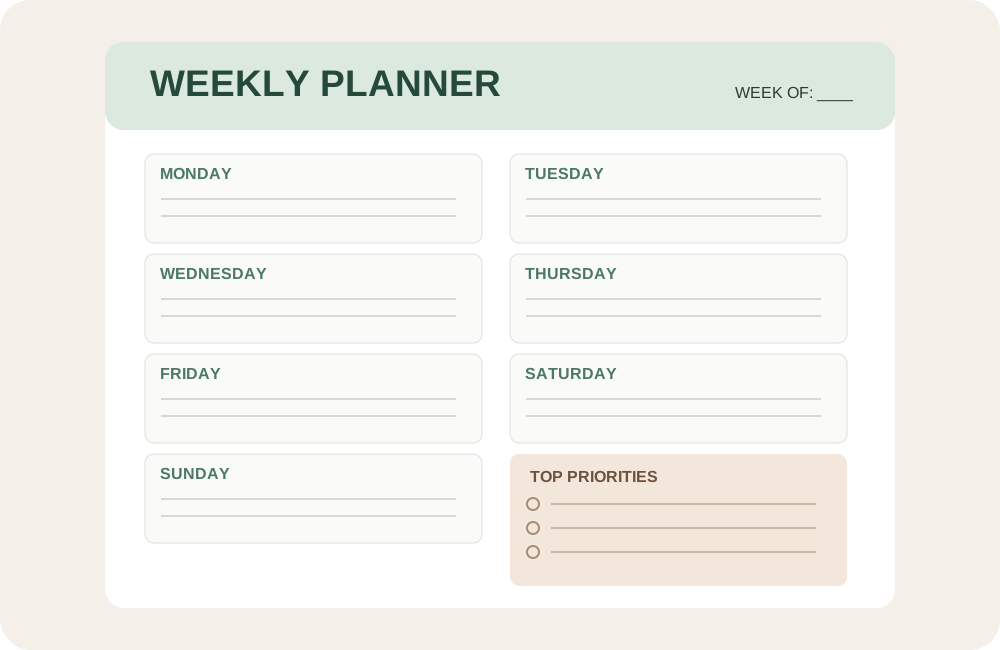 Example layout: a simple weekly planner with daily writing space and top priorities. This is an original illustration, not a Canva screenshot.
FREE MINI WORKSHOP · NO SIGNUP
See the result before you start
Choose a planner style, preview the layout, then download a ready-to-print PDF. You can recreate or customize the idea in Canva Free.
WEEKLY PLANNERWEEK OF ______
TOP 3 PRIORITIES① __________________
② __________________
③ __________________
MON
____________
TUE
____________
WED
____________
THU
____________
FRI
____________
SAT
____________
SUN
____________
NOTES
____________
↓ Download free weekly planner (PDF)
One-page US Letter printable. No email address required. The download uses the sage design; switch the preview to compare styles.
Step 1: Choose one useful idea
Start small. A weekly planner is a good first project because its purpose is clear and you can test whether the layout is genuinely helpful. Think about the person using it: do they need space for appointments, daily tasks, or their three most important goals?
Step 2: Open Canva Free
Sign in to Canva and create a new design. Choose US Letter (8.5 × 11 inches) for a printable planner intended for US paper sizes. You can also choose A4 for international printing. Begin with a blank page so you understand how the layout works.
Step 3: Build a clean layout
Add a clear title such as “Weekly Planner.” Create seven day sections, then reserve a small area for top priorities and notes. Keep enough writing space in each section. Use lines or simple boxes rather than crowded decorations.
Step 4: Pick readable fonts and colors
Use one font for headings and one for body text, or use a single font family throughout. Choose dark text on a light background. A soft accent color can make the planner pleasant without making it expensive to print. Check readability at actual print size.
Step 5: Make it practical
Review the page as if you were going to use it every day. Are the date and day labels easy to find? Is there enough room to write? Could someone print it in black and white? Remove anything that doesn't help.
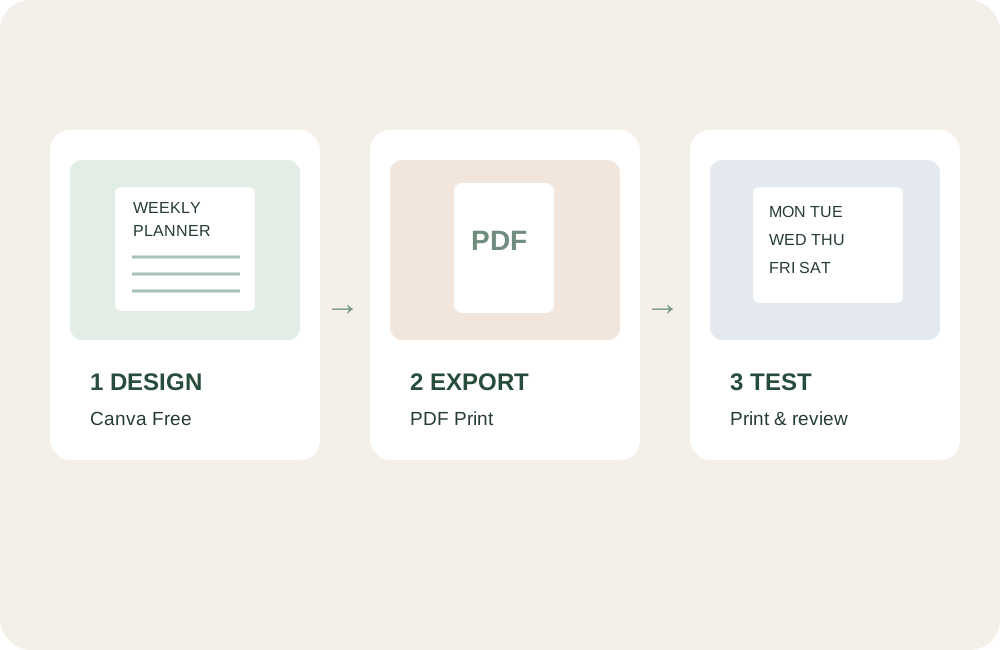 The practical workflow: design → export → test. The graphic is illustrative; Canva interface details may differ.
Step 6: Export a printable PDF
When your layout is ready, use Canva's download menu and choose PDF Print. Save the file with a descriptive name, such as weekly-planner-printable.pdf. Available export settings can vary, so review them before downloading.
Step 7: Test the result
Open the PDF and print a copy if possible. Check margins, text size, alignment, and writing space. If something feels awkward, return to Canva and improve the design. Testing matters more than adding extra decorative elements.
Step 8: Understand licensing before selling
Making a printable for yourself is different from selling one. Before offering a Canva-based product commercially, review Canva's current content license and rules for templates and third-party assets. Don't assume that every image, font, or template element can be resold or redistributed.
Common beginner mistakes
- Too many fonts: keep the visual hierarchy simple.
- Not enough white space: leave room to write.
- Low contrast: test whether labels are easy to read.
- Skipping the print test: a design that looks good on screen may print differently.
- Promising instant sales: creating a product and finding buyers are separate skills.
What could you create next?
Once you've finished a weekly planner, try a reading tracker, habit checklist, meal planner, or simple goal-setting sheet. Pick one problem, design a clear solution, and ask for feedback before building a large collection.
Your next step: Open Canva Free, create one blank US Letter page, and sketch a layout with seven day sections. You don't need to buy anything to begin.
Independent educational content. Canva is a trademark of its respective owner; this site is not affiliated with Canva. Any future affiliate links will be disclosed.
Looking for your next project? Browse 10 beginner-friendly Canva digital product ideas.